From Genesis Designer, you can automatically connect to a live exchange store that gives you access to an up-to-date library of Content Blocks. This Library Service is available for OneStream-hosted cloud environments. Enable Library Service to use this live exchange store. You do not need to download and import the Content Blocks. See Enable Library Service.
For self-hosted on-premises environments and for instances that have the Library Service turned off, follow these instructions to download and import Content Blocks from OneStream Solution Exchange.
There are security requirements to import Content Blocks. See Solution Administration.
-
Go to OneStream Solution Exchange.
-
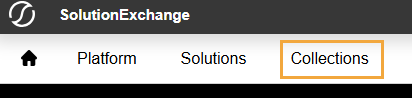
Click Collections.
-
In the Genesis tile, click the Learn More button.

-
On the Genesis page, under Kits & Content Blocks, find the Content Block to download, and click the Download button.

TIP: To find a Content Block, use the search field and filters as needed.
-
Log in to OneStream.
-
Go to Genesis Designer > Settings > Library Management.
-
Follow the instructions to import a library. See Import a Library.


